
- Log in to cPanel.

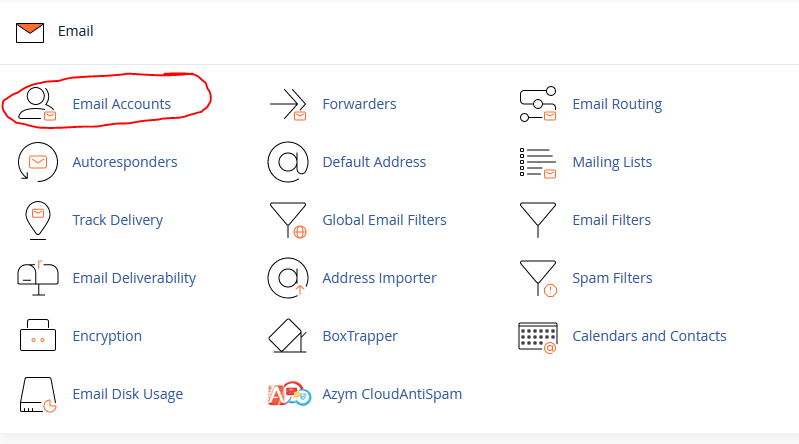
- Look for the Email section, then click Email Accounts.
Click the + Create button located on the right-hand side.

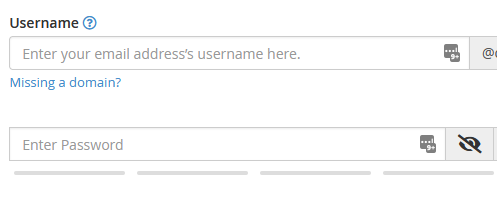
- On the next page, enter the required details to create a new email account (This page appears after clicking the Create Button from the Step 3).
Note: A. @ Domain: Select the domain where you wish to create the new email account.
- @ Username: Enter your email's username.
- @ Password: Enter your email's password.
- You will notice the Optional Settings. (See figure on step 4), Click the Edit Settings button to customize the new email account. This is where you can set your email's storage space (This page appears after clicking the Edit Settings from Step 4).
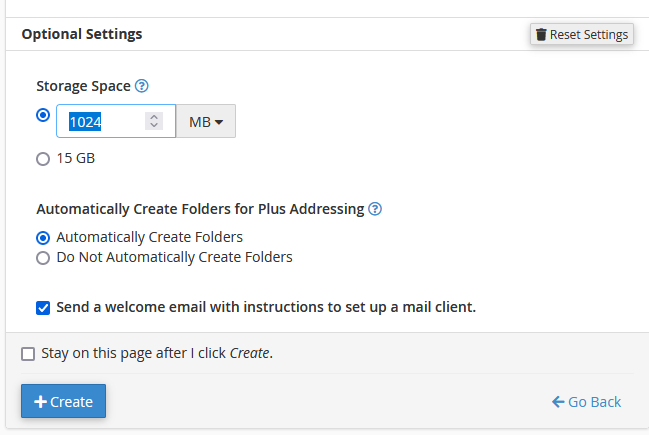
- Click + Create to finalize, then Click Go Back to return to the Main Section Menu.
Note: The same steps work for creating email accounts for your primary domain, addon domains, and
subdomains.
