
Azym Technologies provides our customers access to the AntispamCloud in order to self-manage their mail filter rules and quarantined items. This allows clients to set up their own mail rules as well as monitor which mails are being quarantined as suspicious or malicious.
To get access to the AntispamCloud, please log in. If you do not yet have access to this portal, see this article on how to set up your access. For this article, we will use one of our test domains "Cloudnation.co.za".
Once you have logged in, you will be greeted by the Dashboard:
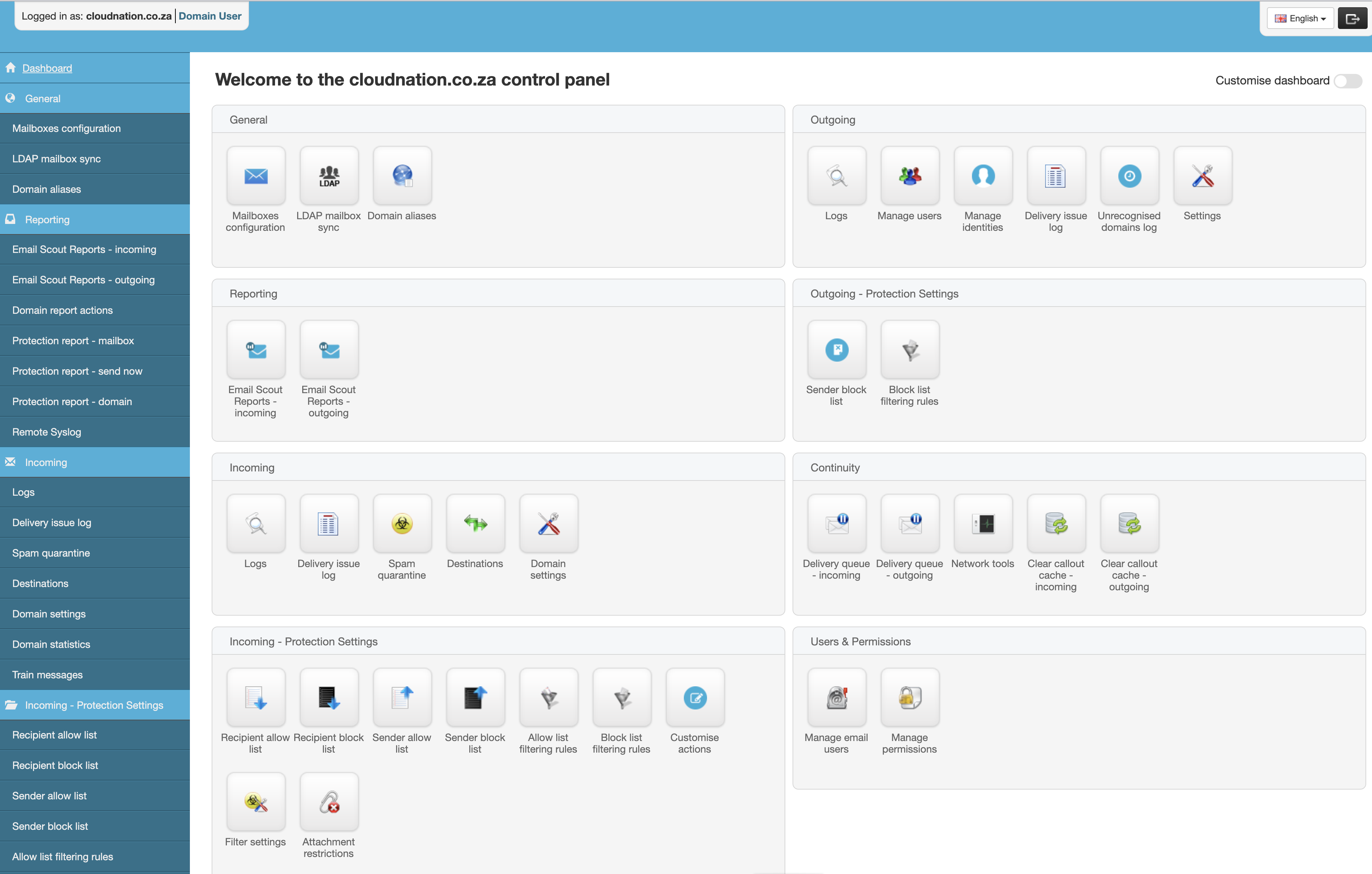
The dashboard gives you several options - not all of them will be used by you. It is IMPORTANT not to change any settings here, as it will influence how your email is handled, and could stop your mail from working completely.
The functions you will be using will be the following:
INCOMING
- Logs
- Delivery issue log
- Spam Quarantine
INCOMING PROTECTION SETTINGS
- Recipient allow list
- Recipient block list
OUTGOING
- Logs
OUTGOING PROTECTION SETTINGS
- Sender block list
So let us go through each section and give you an explanation of what functionality they offer.
INCOMING
- Logs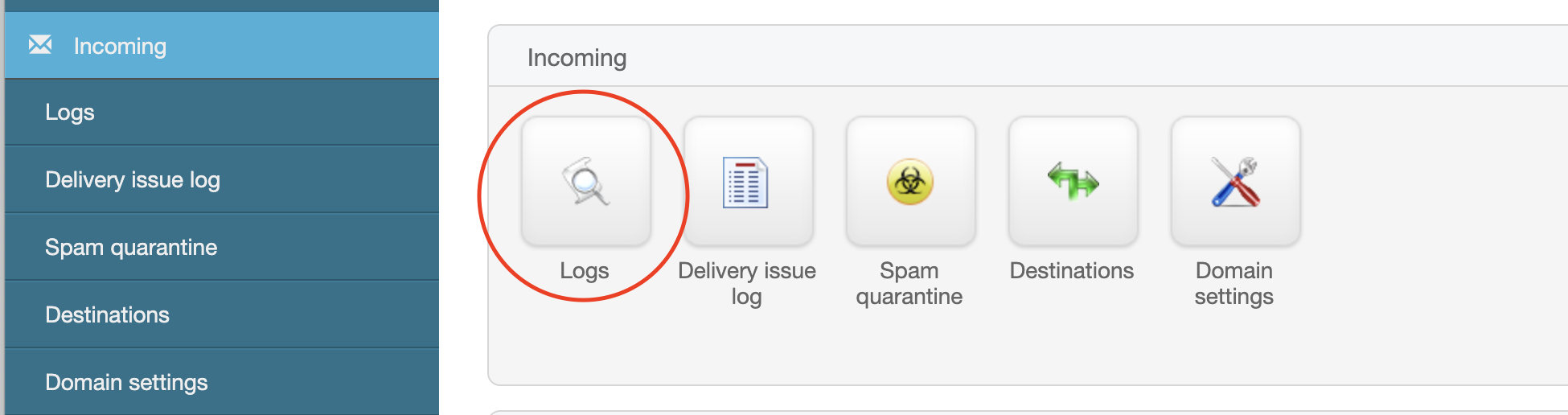
This logs all incoming mail for all accounts. You can select mails here an redeliver it to your inbox if required. To do that, select the email(s) that you want redelivered.
You might also see quarantined items in this list. (All quarantined items will have their subject line in blue. ~ See 'Quarantine' section) 
Once you have selected the message(s) you want redelivered, scroll to the bottom of the page. Click on the dropdown menu called "Apply to selected:" and select "Redeliver archived message" and click on 'Apply'. The mail will now be redelivered.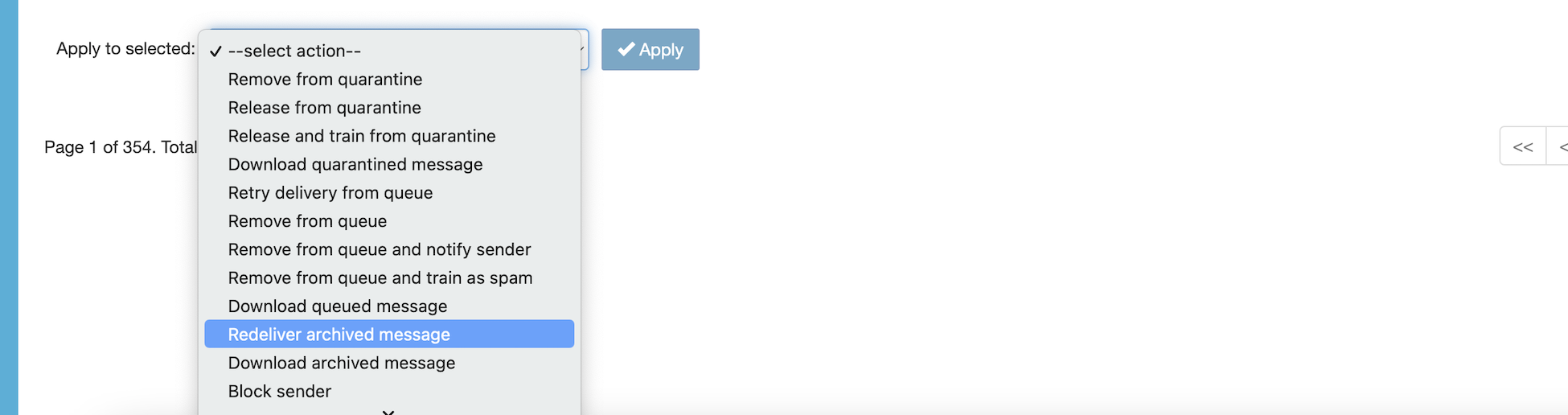
- Delivery issue log
Here you can search for any emails that failed to deliver. It allows you to set several search criteria to find what you are looking for. The most important thing of note here is to change the "Match" condition to 'any' instead of 'all' when making a search.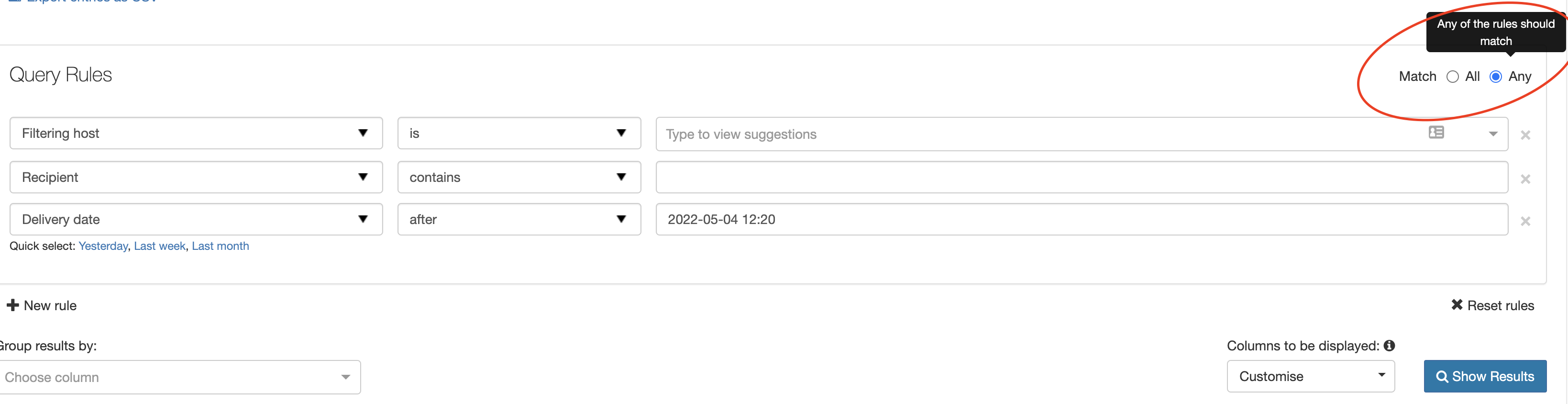
Once you have entered your search parameters, click on "Show Results"
- Spam Quarantine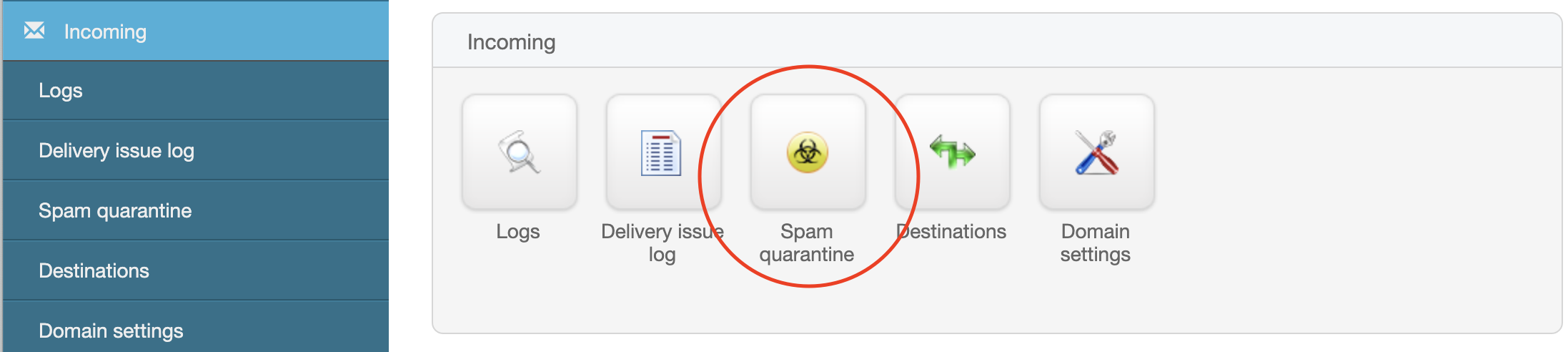
This will log all inbound mails that were quarantined. Mails are quarantined for several reasons:
1. Invalid SPF records on sender domain
2. Suspicious attachments (Excel spreadsheets, zip files, etc)
3. Links in the email body
4. Etc.
If you open the Spam Quarantine, you will see that all quarantined items will have their subject line in blue. You can click on the subject to view the mail if required. If you find any emails here that should not be quarantined, you have two options.
In this example, I will show random system emails on our test account, but on your side it will include legitimate spam like phishing emails, etc. 
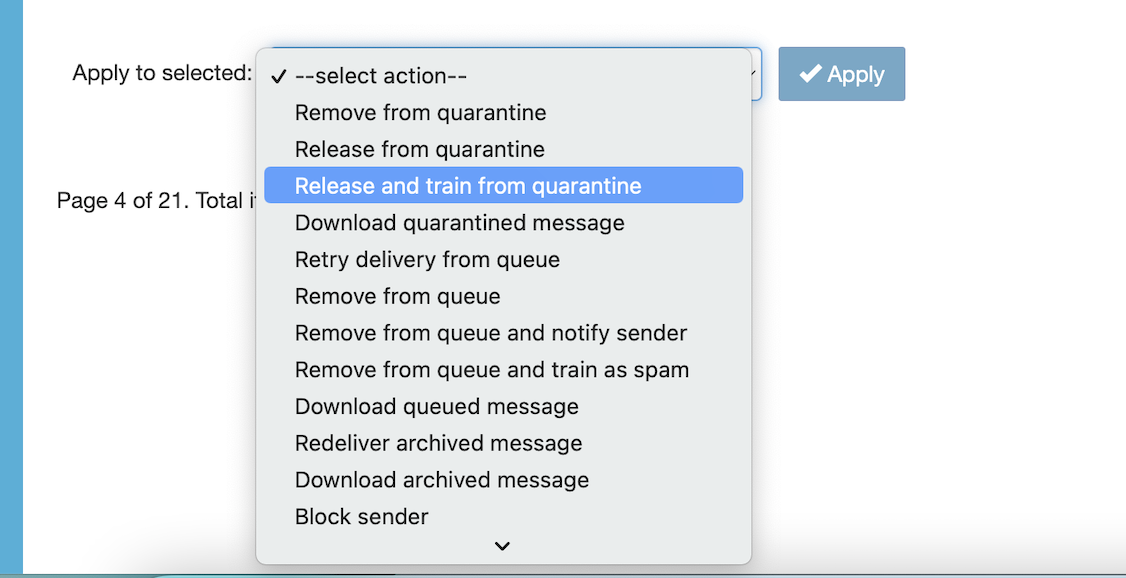
If you identify a mail that should not be quarantined, select it, and scroll to the bottom of the page. Click on the dropdown menu called "Apply to selected:" and select "Release and train from quarantine" and then click on 'Apply'. The mail will now be deliverd.
INCOMING PROTECTION SETTINGS
- Recipient allow list
Here you can whitelist email addresses who's mail should always be delivered to you, without any filtering applied.
- Recipient block list
Here you can block senders so that their emails won't reach your inbox.
OUTGOING
- Logs
This logs all outbound mail for your domain.
OUTGOING PROTECTION SETTINGS
- Sender block list
Here you can block outbound mails to specific senders.
Feel free to explore the other options in this Dashboard. However, if you are unsure of a function, do not access it or make any changes. It is IMPORTANT not to change any settings here, as it will influence how your email is handled, and could stop your mail from working completely.
